AI Video Prompt.
Watch the result. Find the words behind it.

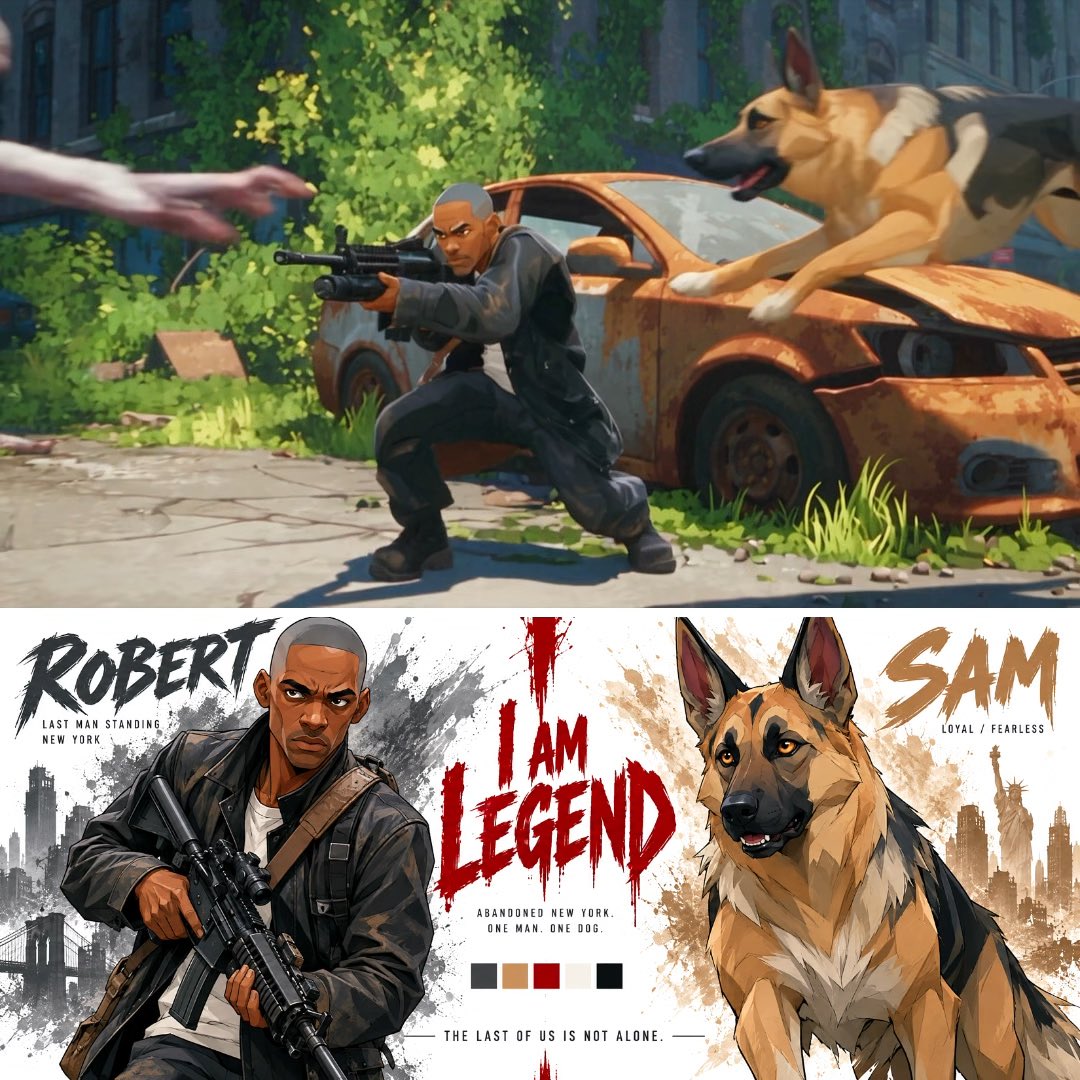
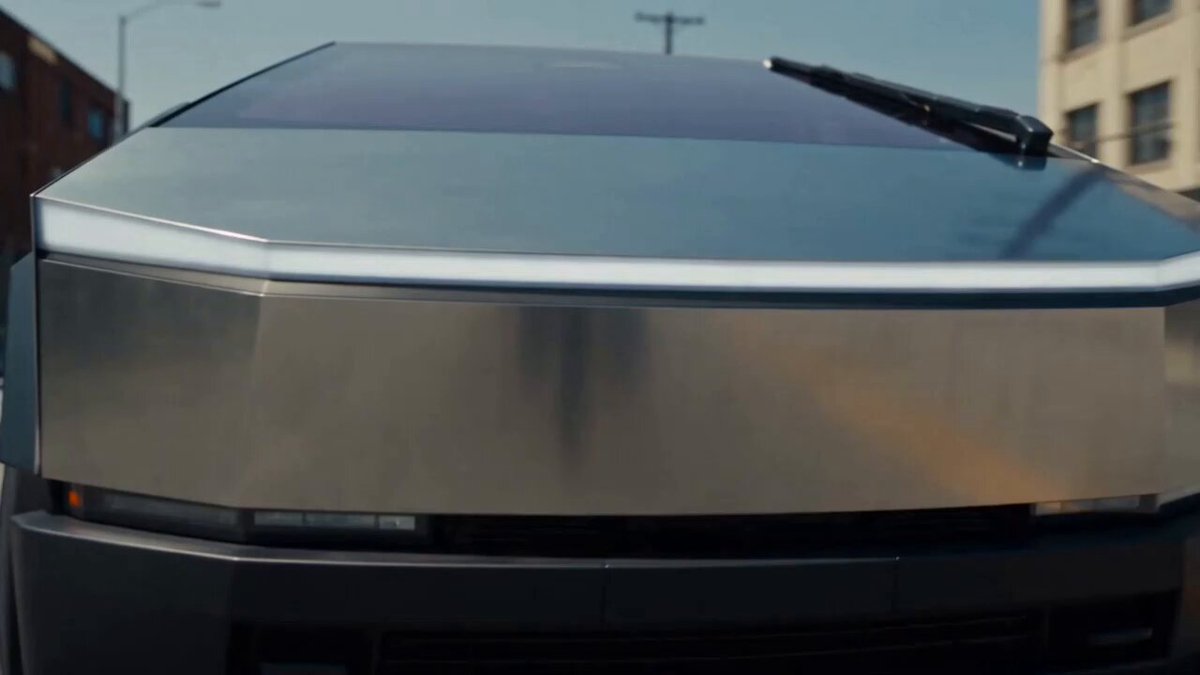
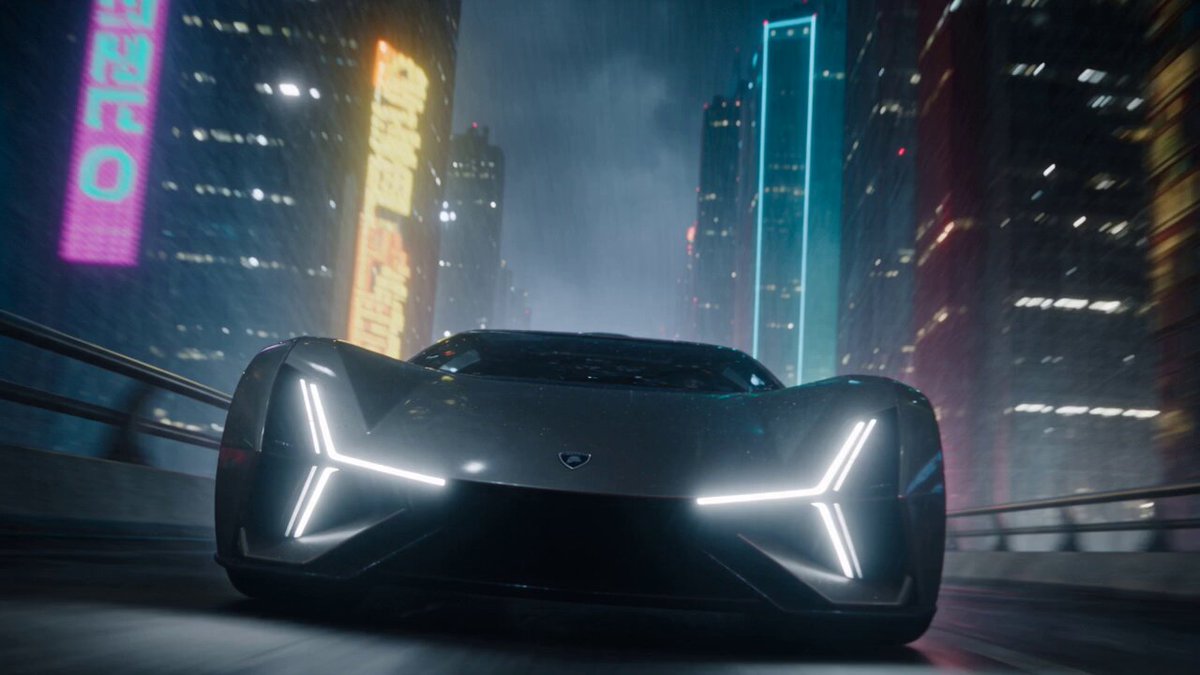
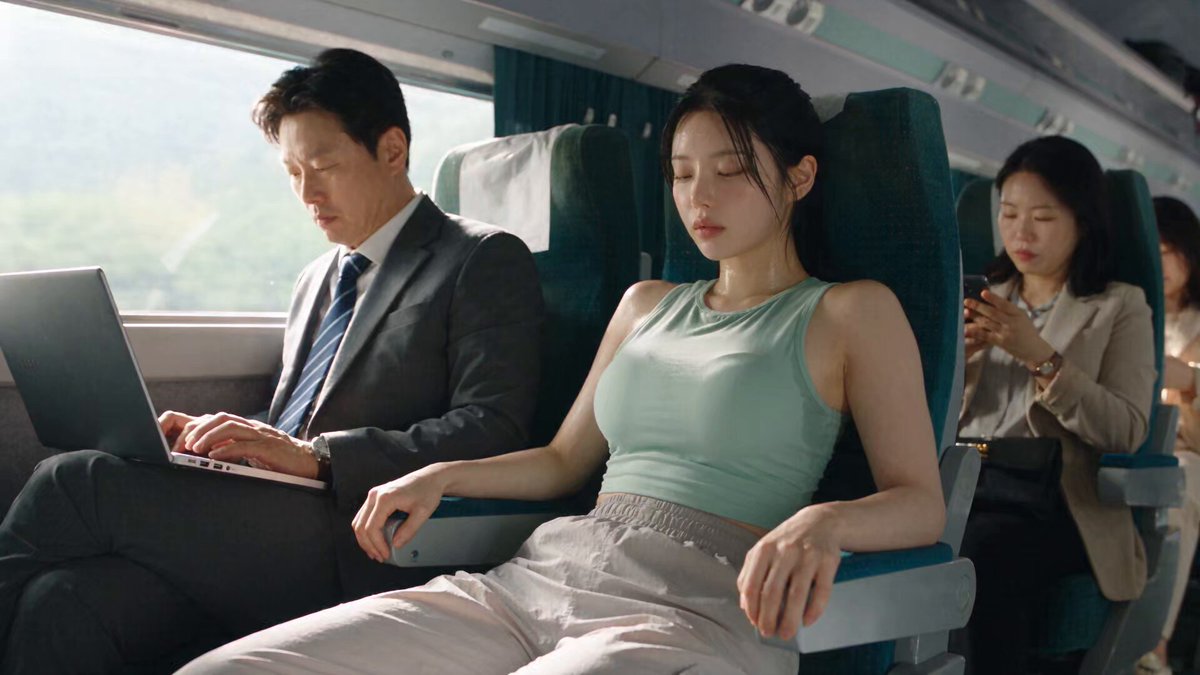
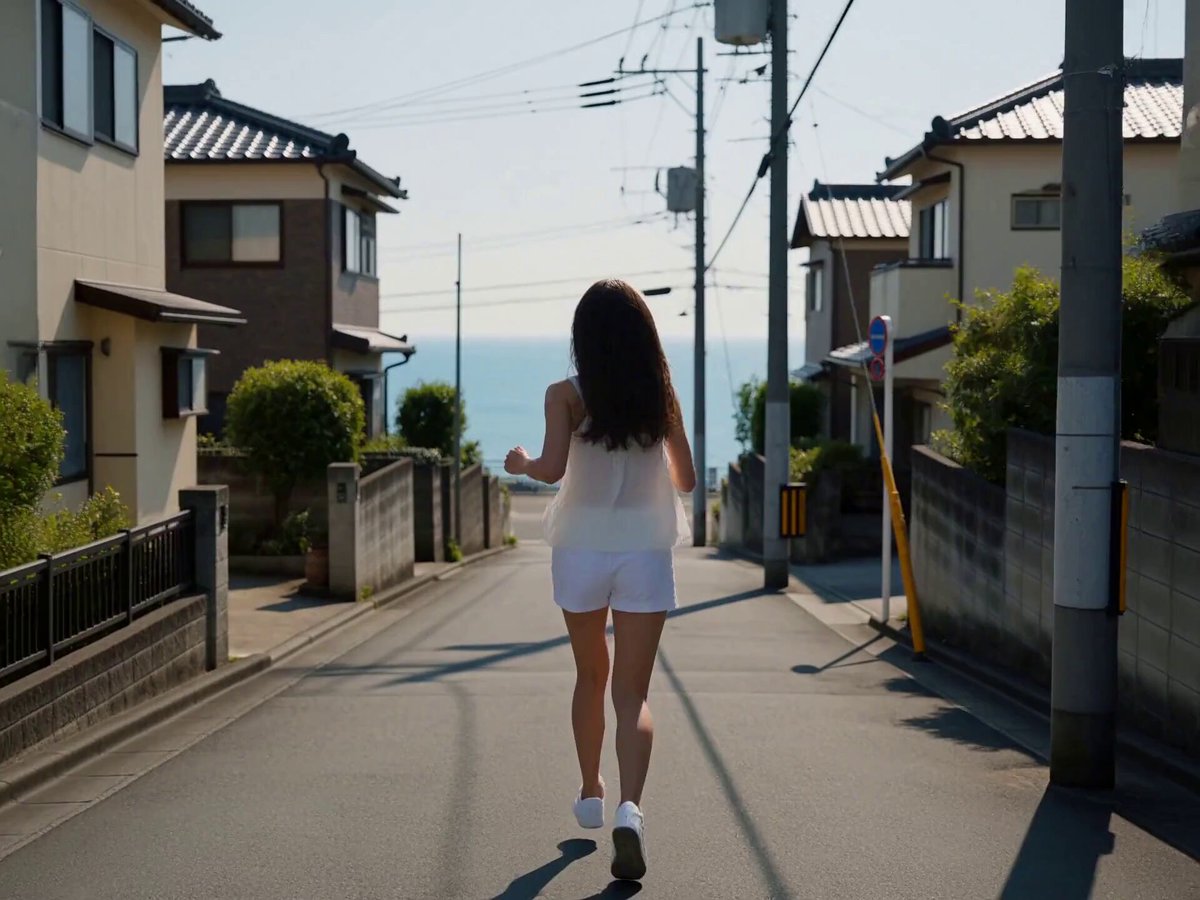
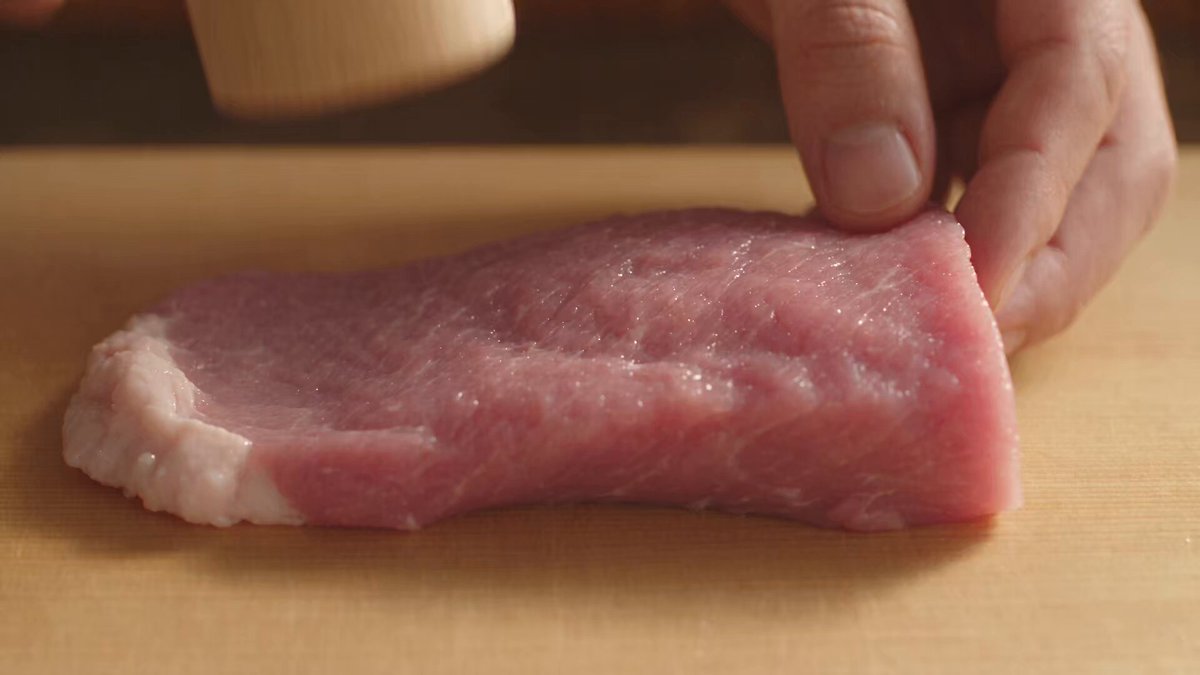
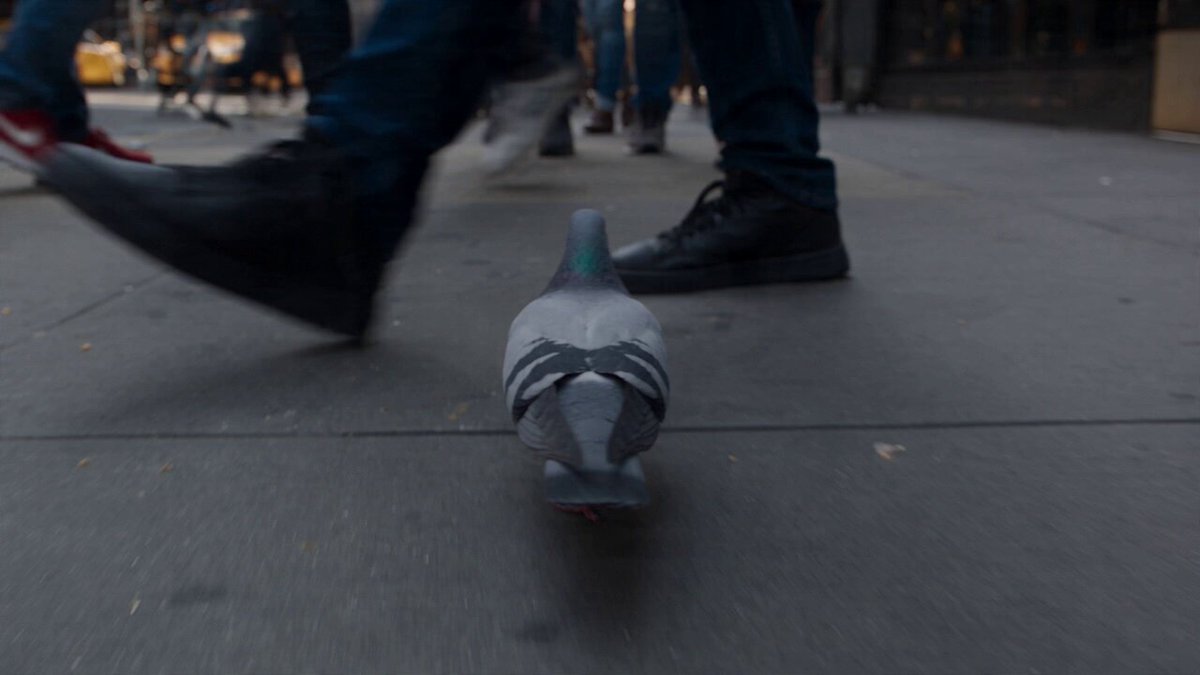
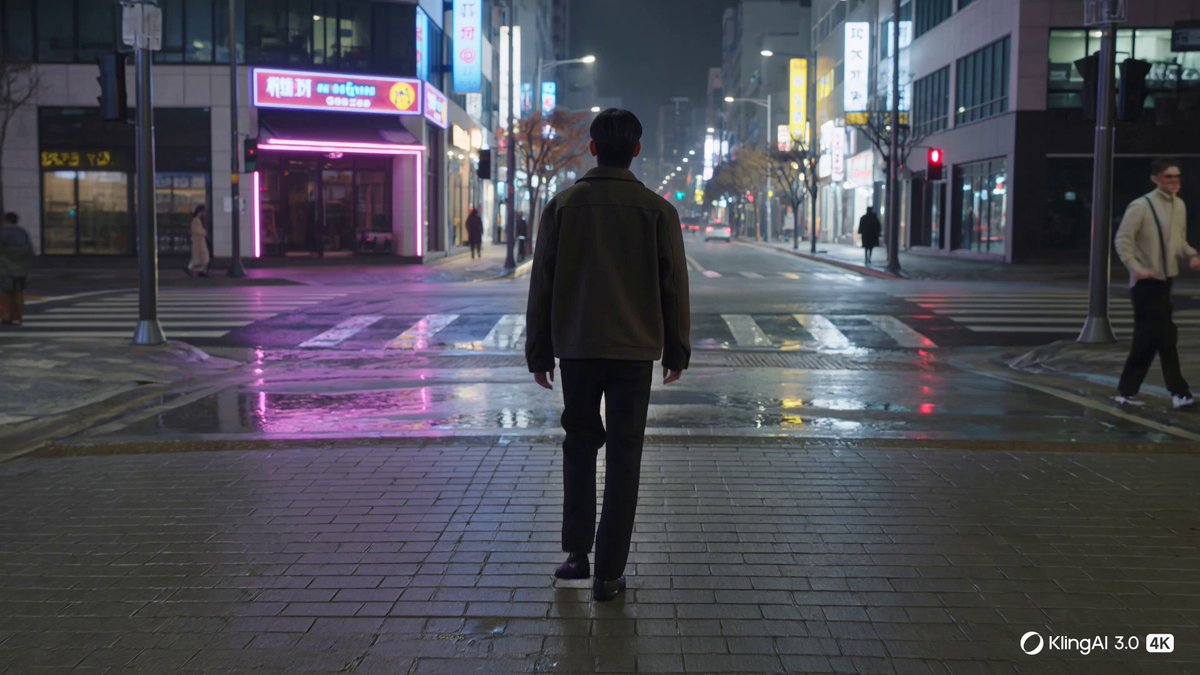
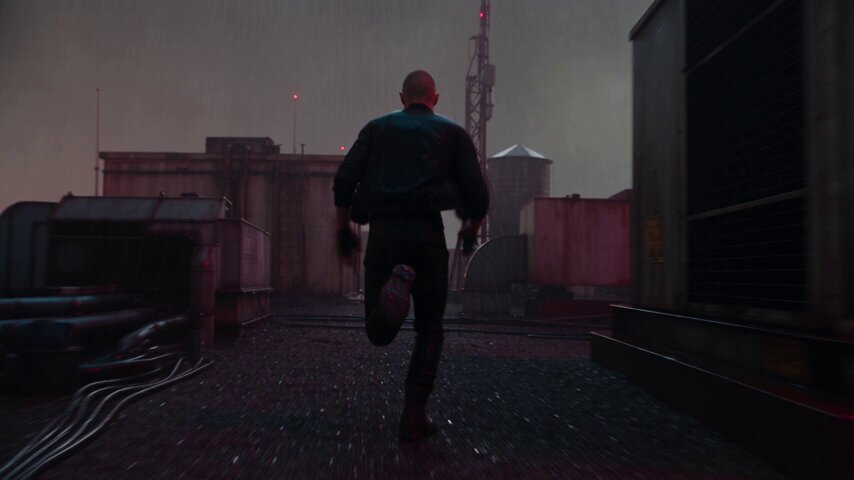
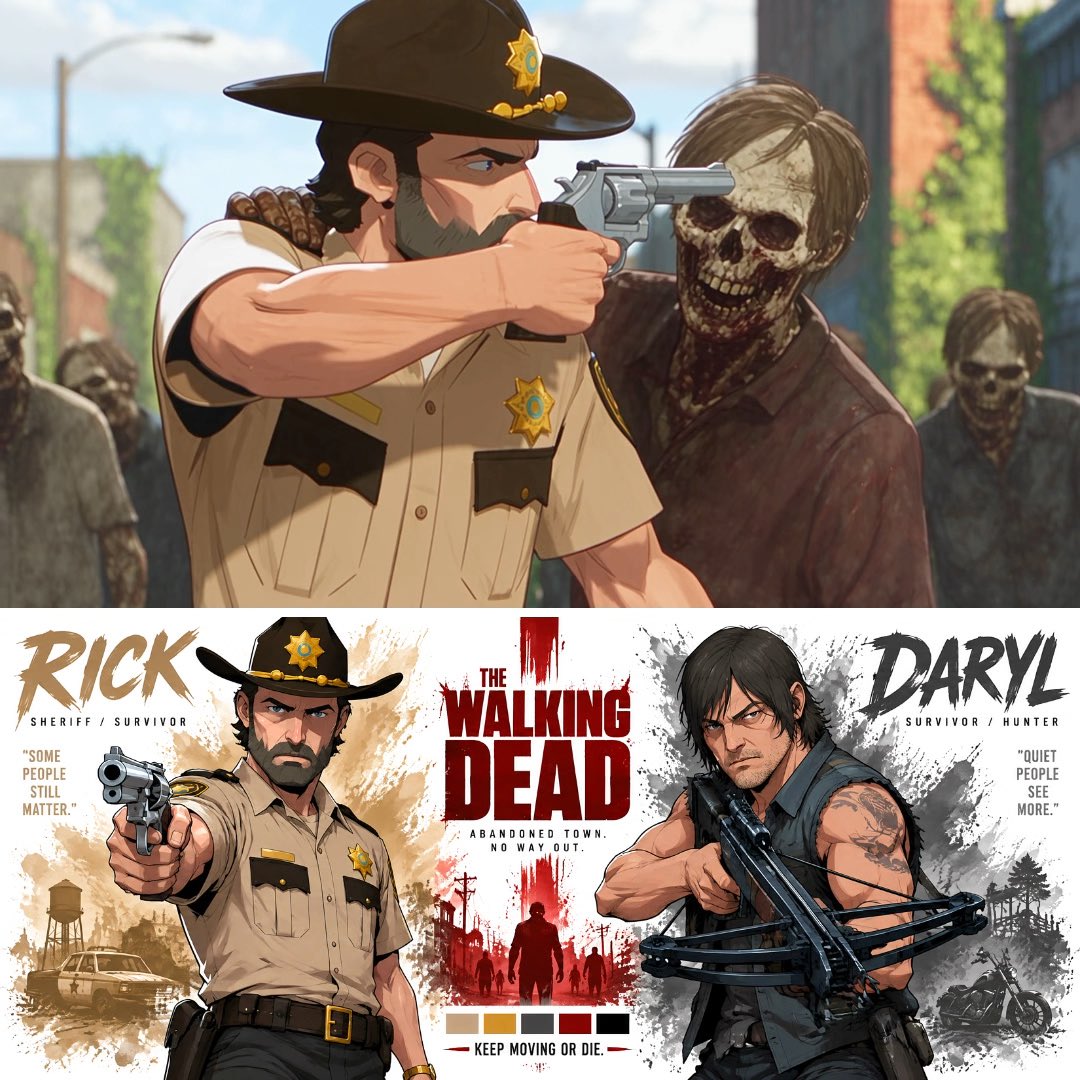
See the scene. Understand the prompt.
Prompt
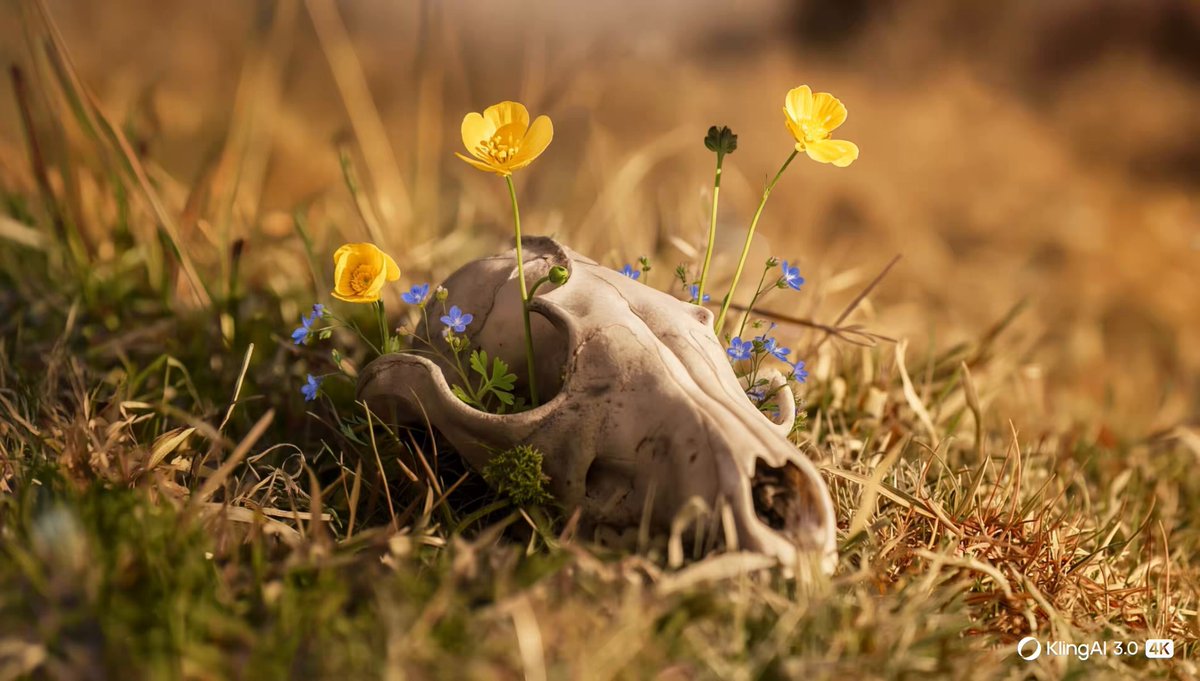
Wildflowers Through an Animal Skull
15-second cinematic continuous shot, ultra-realistic, natural film look, 24fps. 0–4 seconds: Extreme close-up of a sunlit animal skull lying partially buried in dry golden grass. Small yellow and blue wildflowers are naturally growing through the skull, clearly visible and unchanged. Warm early-morning sunlight illuminates the bone and surrounding grass. Shallow depth of field, realistic textures, soft background bokeh. The grass gently moves in a light natural breeze. 4–7…
Read full prompt- Creator
- Al-Shamus
The prompt is preserved in its original language. Copying does not translate it or generate a video.
From inspiration to your next idea.
Find your scene
Search for a subject, a style or a creator. Preview an AI video prompt before opening it.
Read the prompt
See how the video prompt describes the action, camera and atmosphere.
Make it your own
Copy the video prompt, adapt it to your idea, then test it in your chosen tool.
A better prompt starts here.
A practical guide to AI video prompts
Find an AI video prompt by watching the result
An AI video prompt describes a scene over time, not just a single attractive frame. This library pairs each video prompt with a playable example so you can study the relationship between the words and the motion. Start with a clip that has the camera work, pacing, or atmosphere you want. Watch it once for the overall idea, then again for the small decisions: when the subject moves, where the camera looks, and how the shot ends.
Use search to narrow the collection by subject, action, or creator. Content categories help you find anime, nature, action, or another visual direction. Open a video prompt to read the full instructions beside its result.
Understand the structure of a video prompt
A useful video prompt makes the main subject and its action easy to understand. Add the environment, lighting, camera position, and intended motion in that order when the scene needs them. For example, a static camera watching rain collect on a window asks for a very different result from a camera following someone through a crowded street. Clear relationships are more helpful than a long list of visual adjectives.
For a sequence, divide the video prompt into distinct shots or time ranges. Describe what changes between them and what must stay consistent. Avoid asking for several incompatible camera movements in the same moment of your video prompt.
Compare related video prompt examples
The Watch next column keeps more examples within reach while you read. On a desktop, hover over a preview to inspect the motion, then open the clip for its full video prompt. On a phone, tap an example to view its player and video prompt. Automatic previews respect reduced-motion preferences, while the main player gives you normal playback controls.
Compare one creative choice at a time. Look at how another video prompt handles a tracking shot, a product reveal, or a quiet character moment. Related examples use matching title words and model context; they are browsing suggestions, not promises of identical style or output.
Turn a video prompt into a repeatable experiment
Save your starting video prompt, the model settings, and the result together. Change only one major variable in the video prompt for the next test: camera movement, subject action, lighting, or pace. This makes it easier to identify which instruction helped and which introduced a problem. If a video prompt produces a confusing sequence, reduce the number of actions rather than adding another paragraph of corrections.
Review the whole clip, including the first and last frames. Check hands, object continuity, subject identity, and whether the ending feels intentional. Update the video prompt with a specific correction instead of a vague request to improve quality. Keep successful versions for future projects.
A few things to know.
Use AI Video Prompt Copy as a starting point
Open an example and select Copy prompt. The complete video prompt is copied as plain text, preserving its line breaks so a shot list stays readable when pasted into your editor. Copying text does not start a generation or charge generation credits. If clipboard access is unavailable in your browser, select the visible instructions and copy them manually.
Before generating, read the entire video prompt. Replace the subject, setting, and creative details you want to change. Keep a separate version of the original video prompt so you can compare your changes without losing the structure that first caught your attention.
Will the same video prompt reproduce the example?
Not necessarily. An AI video prompt is only one input to a generation. Model versions, reference media, seeds, duration, and other settings can all affect the result. A preview is an example to learn from, not an exact-output guarantee. Even an unchanged video prompt can produce different compositions or motion on separate runs.
If matching a specific clip matters, first identify the parts your video prompt needs to describe: the shot progression, a camera move, a lighting treatment, or the overall mood. Rebuild those choices deliberately. Use the video prompt to communicate the direction clearly, then evaluate the generated footage against your own brief.
Adapt a video prompt to your chosen model
The model shown on an example is context, not a guarantee that every setting is available in your generation tool. Check the supported duration, aspect ratio, input images, and audio options before pasting a video prompt. A thirty-second sequence may need to become several shorter generations. A video prompt that refers to an uploaded image still requires that input; the copied text cannot supply a missing reference.
Keep your first test focused. Preserve the core action in the video prompt and remove unsupported settings. If the model changes the character between shots, simplify the sequence before adding more detail to the video prompt.
Is this a library or a video-to-prompt tool?
This page is a video prompt library: you browse examples, watch them, and copy each video prompt. It does not analyze a new upload or generate a video when you press Copy prompt. For an existing clip of your own, the separate Video to Prompt tool on Copy Video AI can help describe the visual sequence before you start writing a new brief.
Choose the workflow that fits your starting material. Begin here when you want inspiration with a ready-to-read video prompt. Begin with video analysis when you already have footage and need to identify its subjects, actions, framing, and timing. Both workflows benefit from reviewing and editing the text before generation.